

Troubleshooting
Word plugin - common issues
Word documents are not opening from my matters
Section titled “Word documents are not opening from my matters”Usually this is caused by Group Policies (a feature inside of Windows, that controls the working environment of user accounts).
First steps:
Section titled “First steps:”- Open Internet Explorer
- Select the Settings cog in the top right corner
- Navigate to Internet Options
- Select Advanced in the far right tab
- Choose to Reset
- Reset again
- Close
- Retry the Word Plugin
If the problem persists:
Section titled “If the problem persists:”- Open Internet Explorer
- Select the Settings cog in the top right corner
- Navigate to Internet Options
- Select Security in the second tab
- Choose “Trusted Sites”
- Select Sites
- Add https://go.intouchapp.co.uk
The Word plugin has disappeared
Section titled “The Word plugin has disappeared”If Word crashes unexpectedly sometimes it disables third party plugins and you need to manually enable them again.
- Within Word navigate to File > Options
- Choose ‘Add-ins’ in the left hand menu
- Under the manage section choose Slow and Disabled Add-ins
- Tick the InTouch add-in and select Enable / Apply
- If that fails, uninstall the plugin and install it again
Virus message
Section titled “Virus message”The below error message might display when trying to load a document from a matter.
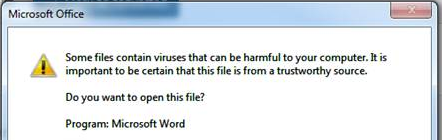
This is a security warning stopping files being opened from websites that could potentially harm your computer. InTouch opens up the word application from it’s web interface which will flag up this relevant warning on some occasions. There is no need to worry about opening files from InTouch and it is possible on some browsers to stop this message appearing only for InTouch (so you remain protected on other websites).
How do I Remove it?
Section titled “How do I Remove it?”- Open Chrome
- Click on the 3 horizontal dots at the top right of the window
- Navigate to Settings
- Select the Advanced drop down menu
- Navigate to System
- ‘Open your computer’s proxy settings’
- Navigate to Security
- Select the Green Tick named ‘Trusted Sites’
- Click on Sites
- Enter www.intouchapp.co.uk into the “Add this website to the zone:”