
Client accounting
Connecting Xero
To use InTouch with Xero, you’ll need to:
- Connect InTouch to a Xero Account
- Map the InTouch ledgers to your Xero bank accounts
- Set up an automatic payment sync
Connecting InTouch to Xero
Section titled “Connecting InTouch to Xero”- Inside InTouch navigate to Settings > Accounts > Xero Connection
- Select Connect to Xero
- Sign in to your Xero account within the pop-up window
- Select the Xero Organisation you would like to connect to
- Allow Access
- In the following pop-up window, choose to ‘Auto create accounts’
InTouch Results
Section titled “InTouch Results”Account mappings will be matched with the corresponding account on Xero.
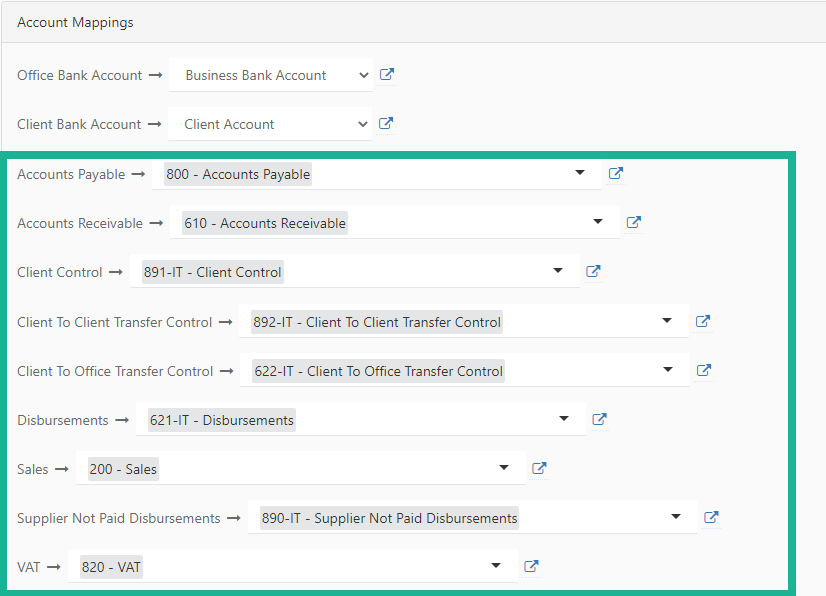
To add a new Chart of Account:
- Within the Chart of Accounts section, select ‘Create New Account’
- Provide the required details
- Confirm
The new account will then be available to map within the Xero Connection section.
Xero Results
Section titled “Xero Results”The following chart of accounts will have been created inside Xero;
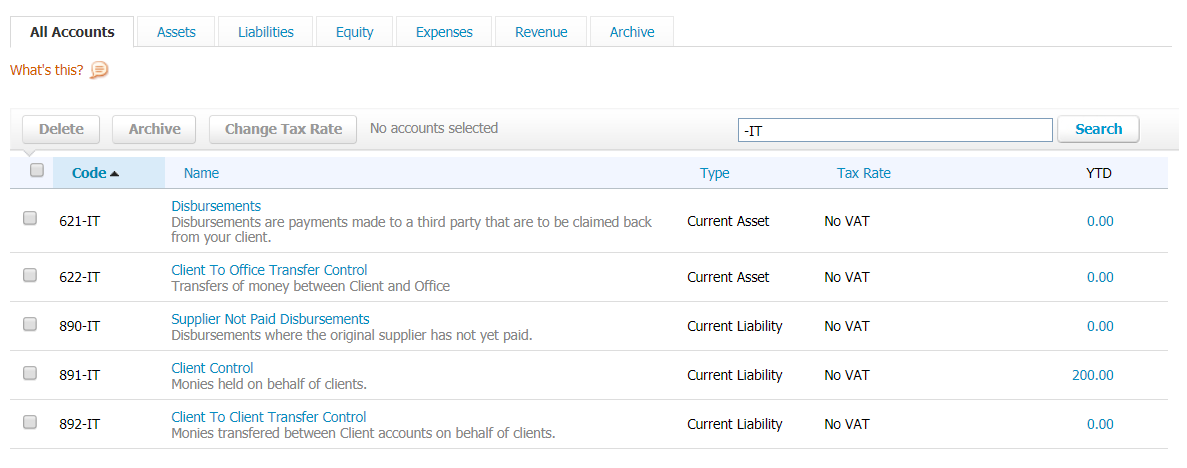
Mapping the InTouch ledgers to your Xero bank accounts
Section titled “Mapping the InTouch ledgers to your Xero bank accounts”Prerequisites;
Section titled “Prerequisites;”- An InTouch account connected to Xero
- Two bank accounts set up in Xero; Office & Client
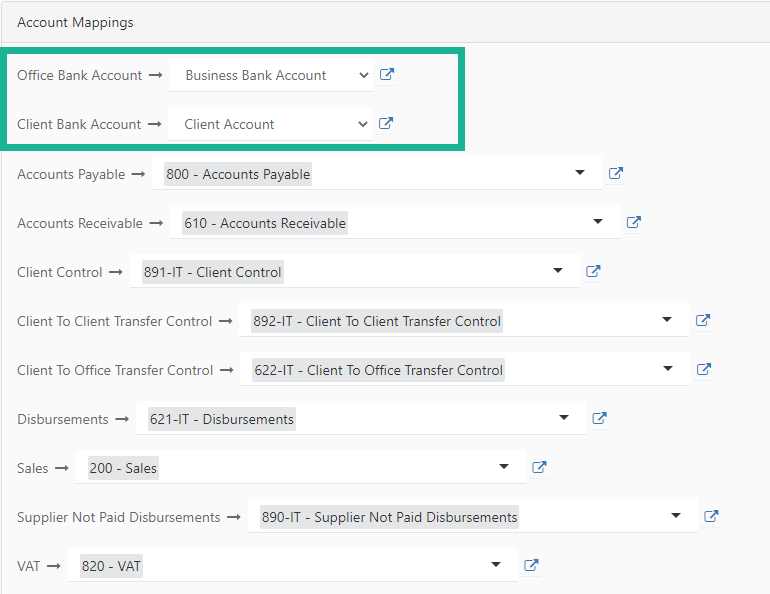
- Inside your InTouch account go to Settings > Accounts > Xero Connection > Account Mapping
- Select your Office Ledger bank account from Xero
- Select you Client Ledger bank account from Xero
- Save Account Mappings
Your InTouch ledgers will now be linked to your Xero bank accounts:
Automatic Payment Sync
Section titled “Automatic Payment Sync”You can configure InTouch to automatically check Xero for any invoice payments and have these sync back to the matter.
Prerequisites
Section titled “Prerequisites”- An InTouch account connected to Xero
- An email address to send errors to
- Inside your InTouch account go to Settings > Accounts > Xero Connection
- Check the Payment Sync box
- Save Sync Setting